Use your Obsidian vault from ChatGPT

A complete walkthrough of connecting an Obsidian vault to ChatGPT with Warplet, then using it as searchable memory you can also write back to.

This guide covers the whole path for one pairing: getting your Obsidian vault reachable from ChatGPT, and then using it as a place ChatGPT can both read from and write to across conversations.

Everything you need is on this page. Warplet is a macOS app that opens a secure tunnel to MCP servers running on your Mac, so no port forwarding or cloud hosting is involved.

1. Install the Local REST API with MCP plugin

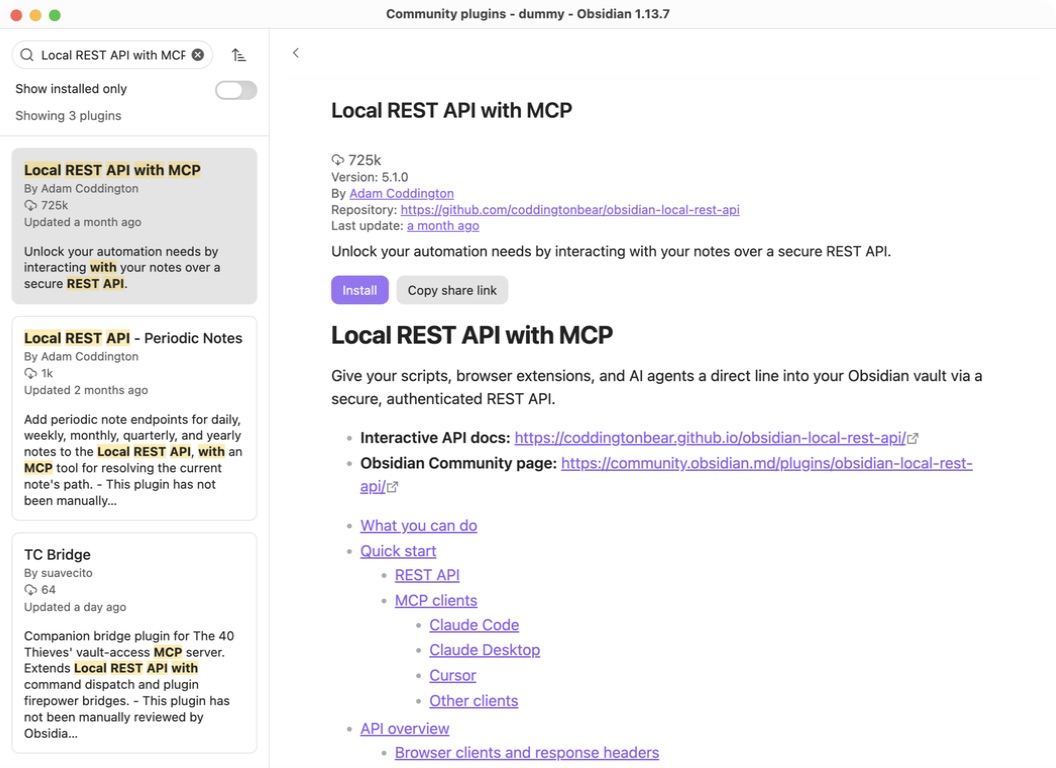
Obsidian does not ship its own MCP server, so a community plugin provides one.

In Obsidian, open Settings → Community plugins → Browse, then search for Local REST API with MCP (by Adam Coddington). Click Install, then enable it.

2. Find your MCP endpoint URL and API key

Open the plugin's settings page (Settings → Community plugins → Local REST API with MCP) and scroll to How to access via MCP. You will see two endpoint URLs and an API key:

  • Use the non-encrypted (HTTP) MCP endpoint, http://127.0.0.1:27123/mcp/, unless you have set up a trusted certificate for the encrypted one.
  • Copy the API key shown just above the REST section.

3. Add Obsidian as a server in Warplet

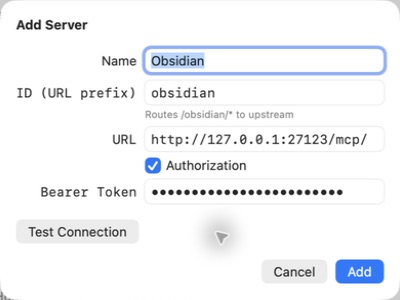
Open Warplet, click Manage Servers, then the + button. Fill in:

  • Name: Obsidian
  • ID (URL prefix): obsidian
  • URL: http://127.0.0.1:27123/mcp/
  • Authorization: check this box and paste the Obsidian API key into Bearer Token

Click Test Connection, then Add.

Back in the main window, click Start if Warplet is not already connected. Warplet provisions your *.warplet.app hostname and opens the tunnel, and your Obsidian entry then appears under Use these URLs to connect your favorite LLM. Copy that URL.

4. Add the connector in ChatGPT

ChatGPT keeps custom MCP servers behind Developer Mode, which has to be on in two places: once in settings to create the connector, and again in each conversation where you want to use it.

  1. Go to your ChatGPT connector settings.
  2. Click Advanced Settings and toggle Developer Mode.
  3. Click Create, then fill in the form:
    • Name: Obsidian
    • Server URL: the Warplet URL you copied in step 3
    • Authentication: OAuth
    • Toggle I trust this application
  4. Click Create. ChatGPT runs an authorization flow. When the Warplet authorization page appears, paste the bearer token shown in the Warplet app and approve.

Paste the Warplet bearer token here, not the Obsidian API key. That one stays in Warplet's server config from step 3.

Open a new chat and turn on Developer Mode for that conversation. The connector is now usable.

What the connector exposes

The plugin gives ChatGPT a small set of tools, roughly: search_vault to find notes, get_file_contents to read one, create_file to add a new note, and patch_file to change an existing one. The exact set depends on the plugin version, so it is worth asking in the first message:

What tools do you have available from my Obsidian vault?

If the list comes back empty, Obsidian is not running, the vault is not open, or the plugin is disabled.

Use the vault as memory across sessions

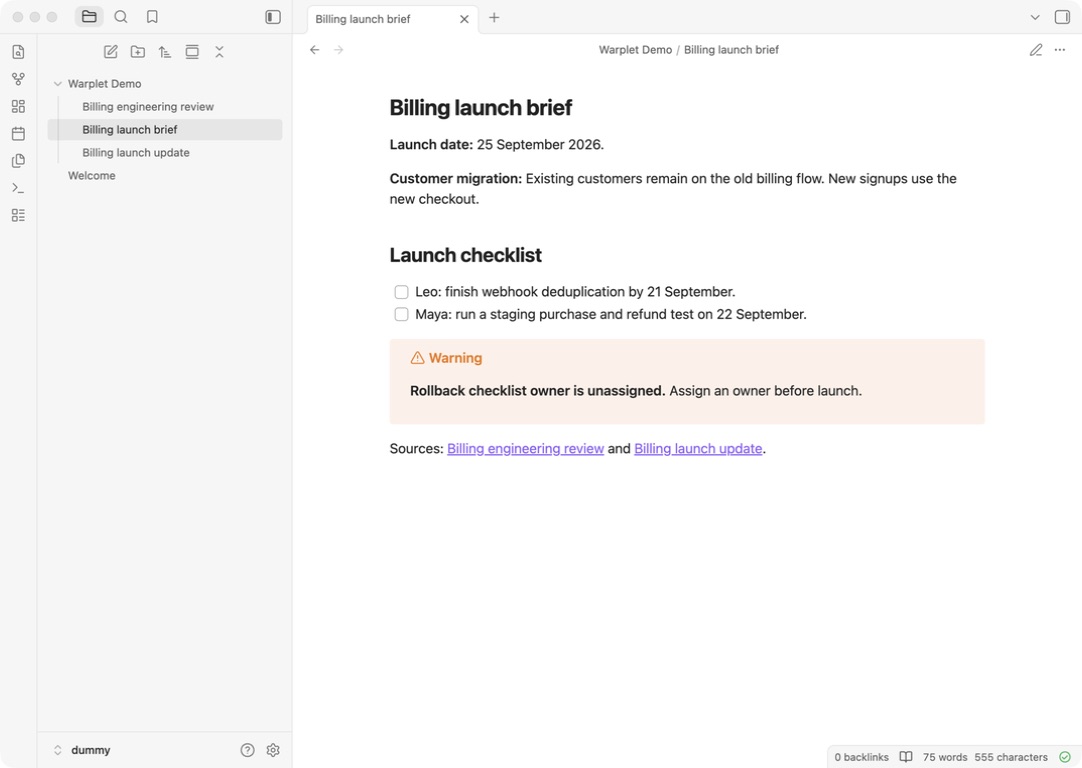
Whatever ChatGPT retains between chats is held on its side, where you cannot open it in another app, edit a line you disagree with, or see exactly what it kept. A note in your vault is a record you own and can point a fresh chat at deliberately. That is the most useful part of this pairing: end a session by having ChatGPT write down what was decided, then open the next one by having it read that back.

Close a working session with something like:

Append a summary of what we settled today to Projects/Billing rewrite.md, under a new dated heading.

Open the next one with:

Read Projects/Billing rewrite.md and catch me up on where we left off.

This works better than pasting context back in by hand, because the note stays useful to you in Obsidian as well.

Turn scattered notes into a memo

The thing a vault is genuinely bad at alone is answering a question spread across many notes. Search returns files; it does not synthesize.

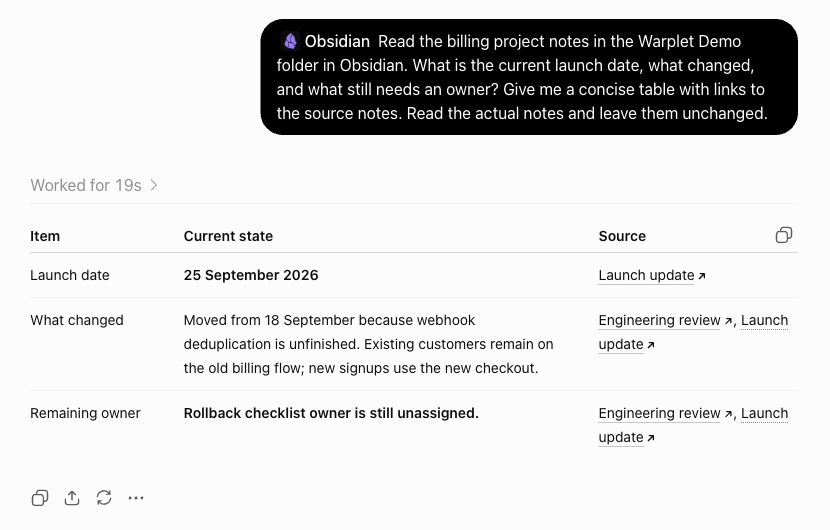
Search my vault for notes mentioning the billing rewrite from the last two months, read the ones that look relevant, and draft a decision log: what we decided, what is still open, and who owns each item. Save it as Projects/Billing decisions.md.

Ask for note titles alongside the answer. It lets you check the sources, and it is a fast way to spot when the search missed something you know is in there.

Patch a daily note without clobbering it

patch_file changes part of a note rather than replacing it, which matters for anything you also edit by hand. Be specific about where the text should land:

Append these three action items to the ## Tasks section of today's daily note. Leave the rest of the note alone.

Asking to "update" a note is riskier than asking to "append to" a named section, because the former leaves the choice of what to overwrite up to the model.

Formatting your notes actually use

ChatGPT writes plain markdown by default, which is not quite Obsidian markdown. Two things are worth asking for explicitly:

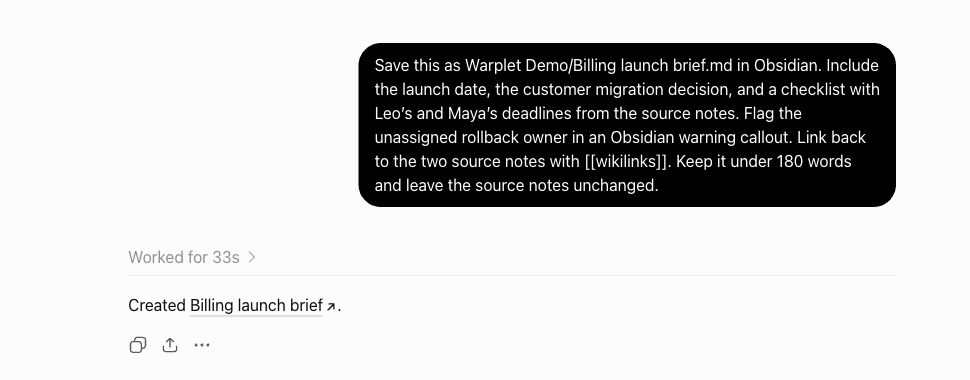
  • Wikilinks. Say "link related notes with [[Note name]]" if you want Obsidian's link graph to pick the new note up. Otherwise you get plain text or standard markdown links.
  • Frontmatter. Ask for it by name and list the keys you want, for example "add YAML frontmatter with tags and date". It will not be added on its own.

Before a write runs, ChatGPT shows you the tool call and what it is about to change, so you can read the target path before approving. Worth actually reading the first few times, particularly the path.

Troubleshooting

The ChatGPT connector guide covers the general connector failures, including Developer Mode, 401s, and stale tool lists. Two problems are specific to this pairing:

  • Reads work but writes do nothing. Check that you approved the confirmation, and that the note path exists. patch_file needs a note that is already there; use create_file for a new one.
  • Writes land somewhere unexpected. The plugin serves whichever vault Obsidian currently has open. Community plugins are enabled per vault, so a second vault needs its own setup before ChatGPT can reach it.

The same vault URL works in the other clients Warplet supports: Claude, Perplexity, Grok, Grok Bot, and Gemini. Only the Developer Mode steps above are specific to ChatGPT.