
Warplet is a macOS app that connects hosted AI clients like ChatGPT, Claude, Perplexity, and Grok to MCP servers running locally on your Mac. No port forwarding or cloud hosting is required. It opens a secure tunnel and gives you one URL per local MCP server to paste into any AI client.
Chrome does not ship an MCP server of its own. The Chrome MCP Server project adds one: a browser extension plus a native messaging bridge that together expose your actual running Chrome, with your logged-in sessions and your open tabs, over a local HTTP endpoint. That is the important difference from headless browser automation tools. The AI client drives the browser you are already using rather than a fresh anonymous one, so pages behind a login work without handing over any credentials.
Warplet exposes that local endpoint to hosted AI clients. This guide walks through installing the bridge and extension, finding the MCP URL, and connecting it in Warplet.
1. Install the bridge
The bridge is an npm package that Chrome talks to through native messaging. Install it globally:
npm install -g mcp-chrome-bridge
If the package's post-install step does not run, register the native host manually:
mcp-chrome-bridge register
2. Install the Chrome extension
Download the extension from the Chrome MCP Server releases page and unpack it. Then in Chrome:
- Go to
chrome://extensions/. - Turn on Developer mode with the toggle in the top right.
- Click Load unpacked and select the unpacked extension folder.
- Open the extension and click Connect to start the local server.
3. Find your MCP endpoint URL
With the extension connected, the server listens on port 12306 and serves streamable HTTP at:
http://127.0.0.1:12306/mcp
The extension shows the current port if you have changed it from the default.
4. Add Chrome as a server in Warplet
Open Warplet and click Manage Servers, then the + button to add a new server. Fill in:
- Name:
Chrome - ID (URL prefix):
chrome - URL:
http://127.0.0.1:12306/mcp - Authorization: leave this unchecked. The Chrome MCP Server does not use a bearer token; it relies on binding to localhost only.
Click Test Connection to confirm Warplet can reach the extension, then Add.
5. Copy your Chrome URL and connect an AI client
Back in the main Warplet window, your Chrome entry now appears under Use these URLs to connect your favorite LLM. Copy that URL.
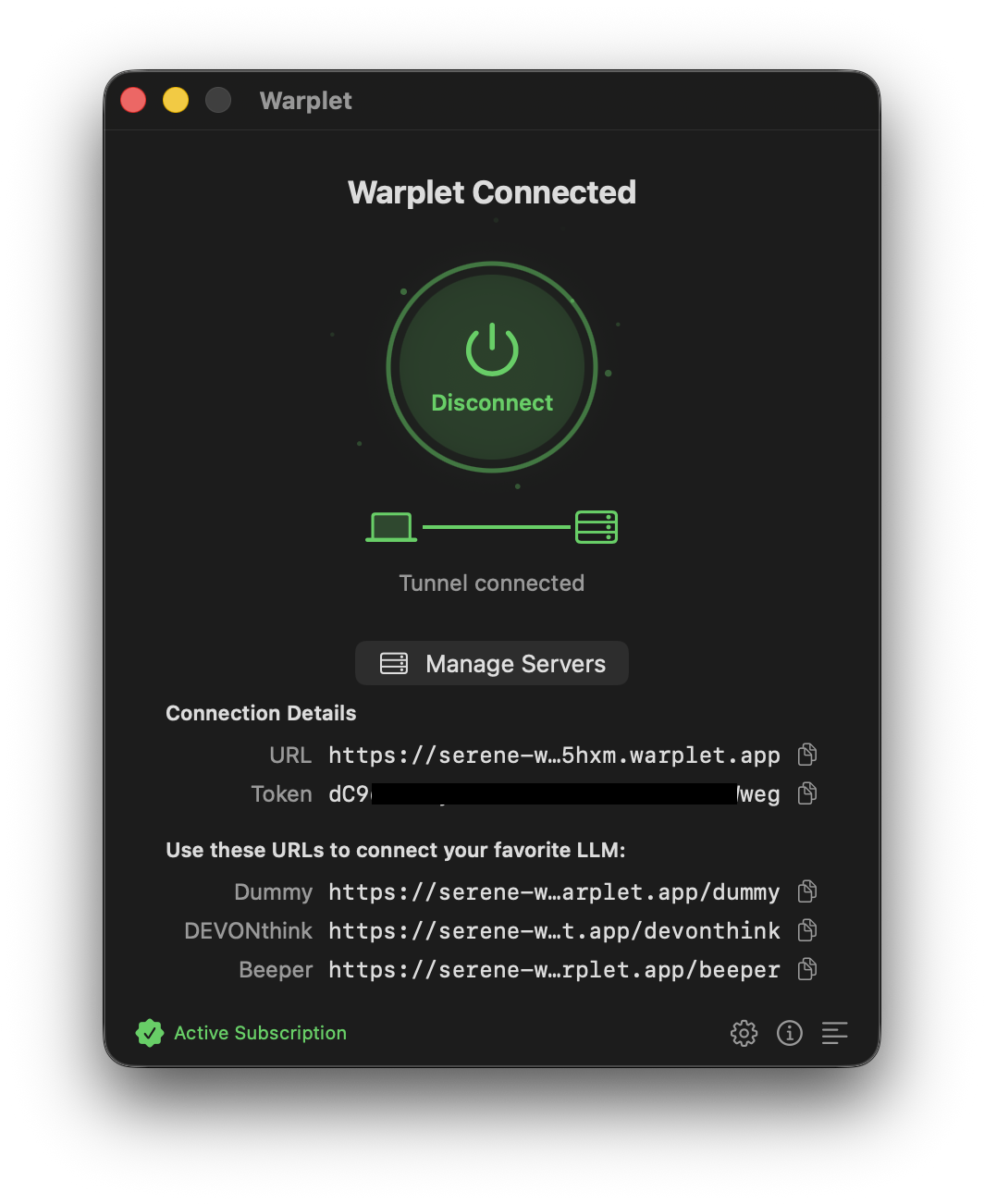
Add it as a custom connector in your AI client of choice, using the same steps as any other Warplet server:
- Connect Warplet to ChatGPT
- Connect Warplet to Claude
- Connect Warplet to Perplexity
- Connect Warplet to Grok
- Connect Warplet to Grok Bot
- Connect Warplet to Gemini
When the client asks you to authorize, paste the Warplet bearer token.
Things to know
- Warplet's bearer token is the only gate here. Because the Chrome MCP Server has no auth of its own, the token you paste into your AI client is the single thing standing between the public tunnel URL and your browser. That is true of every Warplet server, but it matters more for one with no second layer.
- It drives your real browsing session. The extension acts inside the Chrome profile it is installed in, so anything you are logged into is reachable. Use a separate Chrome profile if you would rather keep that narrow.
- Chrome needs to be running with the extension connected. Closing Chrome takes the MCP server down with it. Warplet will have nothing to forward to.
- The tools cover browsing, not just fetching. Navigating, reading page content, interacting with elements, and searching across your tabs and history are all exposed, which is why this is more useful than asking a model to fetch a URL.
- This is a community project. The extension and bridge are maintained outside Google, so check the project's own documentation for the current tool list and release notes.