
In Grok Bot you install an MCP server by asking the bot in chat, with the URL in the message. The bot creates the connector, and it then appears in the plugin marketplace with an Authenticate button.
This is a different surface from grok.com. A connector you added on the Grok connectors page does not carry over to Grok Bot, so a Warplet URL you already use in Grok has to be installed here separately.
Warplet is a macOS app that connects hosted AI clients to MCP servers running locally on your Mac. If you have not set it up yet, start with How to use Warplet.
Before you start
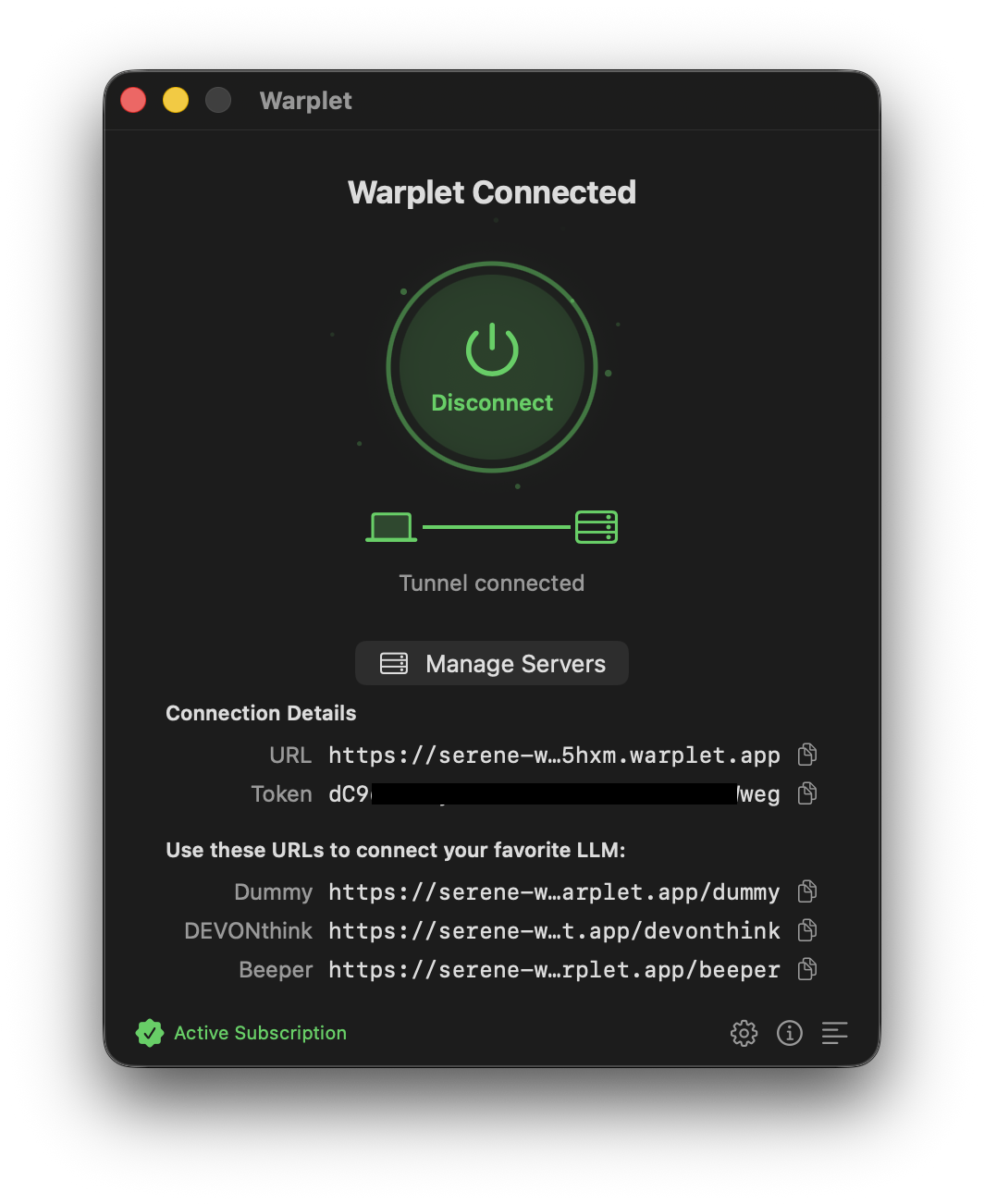
Make sure Warplet is running and connected. The app lists one URL per MCP server under Use these URLs to connect your favorite LLM. Each URL routes to a specific MCP server: the DEVONthink URL routes to the DEVONthink MCP server, the Beeper URL to the Beeper MCP server, and so on. Copy the URL for the server you want to connect.
Install the connector
-
Open a chat with your bot and ask it to install the connector, using the app name and your Warplet URL:
Install "DEVONthink" MCP Connector - https://your-tunnel.warplet.app/devonthinkUse the name of the app you are exposing, like
DEVONthinkorObsidian. You will have one connector per local MCP server, and the name is what tells you which is which later.Obsidian (Warplet)works too if you want the source in the name. The screenshots below show a connector namedWarplet, which is what they were captured against. -
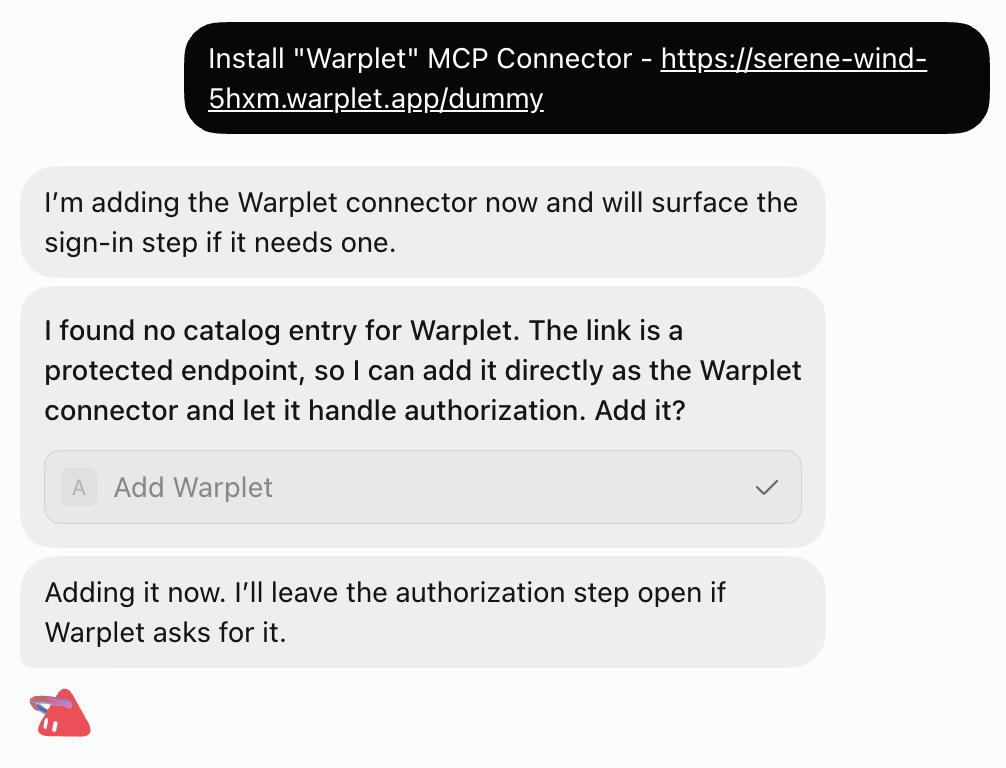
The bot will report that the URL is not in its catalog. That is normal. It offers to add the connector directly instead, so click the Add button in its reply.
-
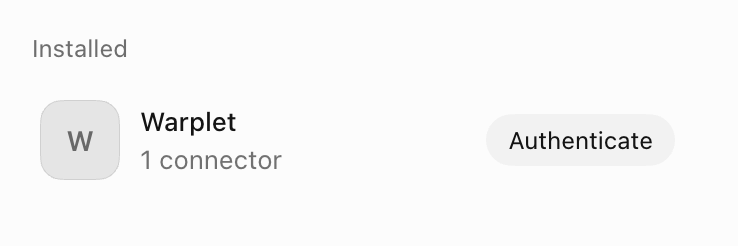
Open the plugin marketplace. The connector is listed under Installed. Click Authenticate.
-
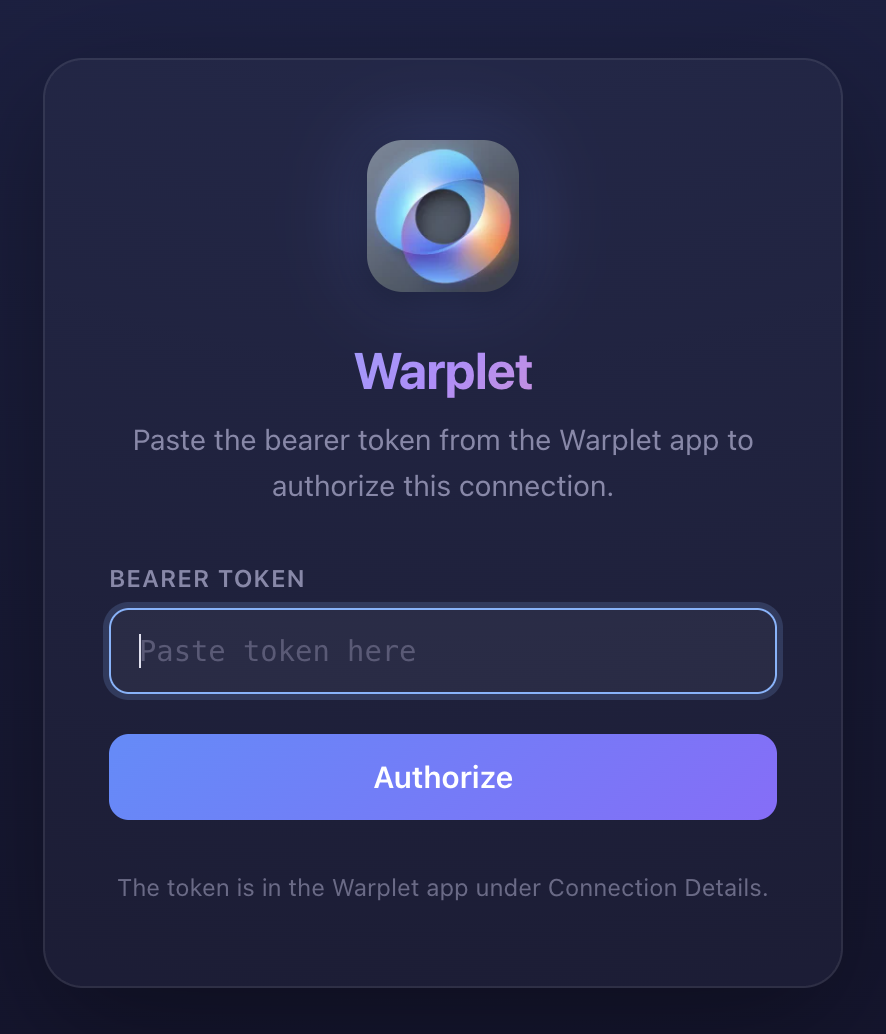
The Warplet authorization page opens. Paste the bearer token from the Warplet app and click Authorize.
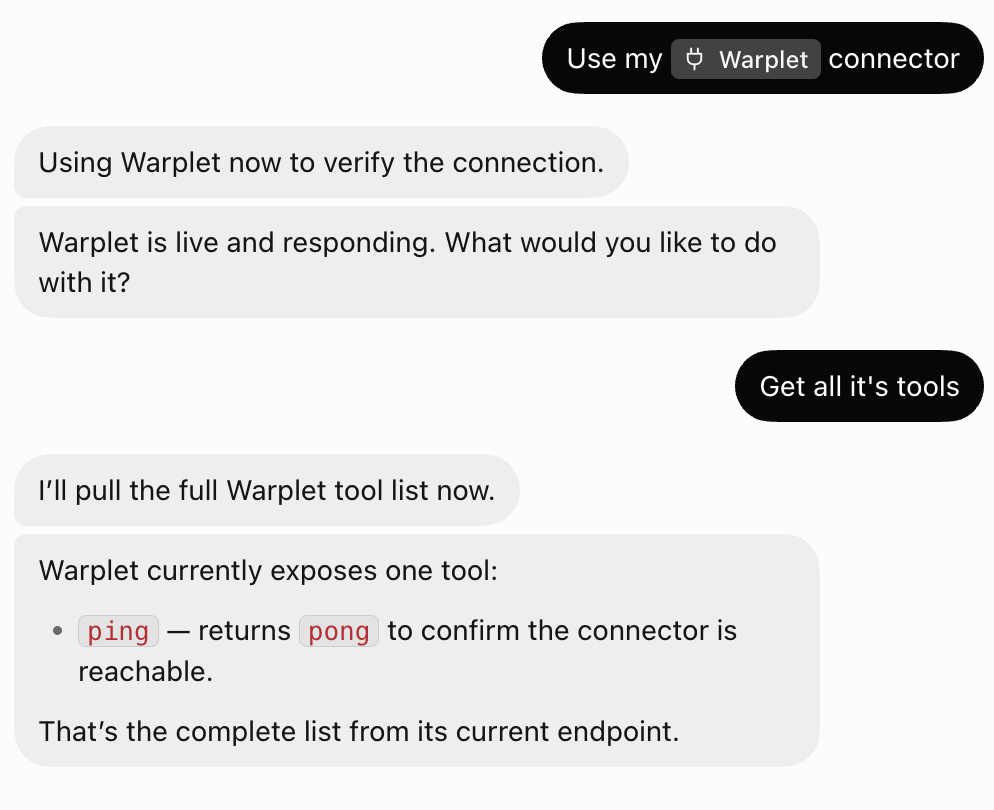
The connector is now live. Ask the bot to use it and it will start calling your local tools.
What the authorization step is doing
Grok Bot runs the OAuth 2.1 flow that MCP clients expect against your Warplet tunnel: it reads the discovery metadata, registers itself as a client, and sends you to a Warplet-hosted page. The token you paste there becomes the credential the bot sends on every later request.
The tunnel URL itself is public. The bearer token is the only thing that keeps anyone else from reaching your local servers through it, so do not paste it anywhere but the Warplet authorization page.
Troubleshooting
The bot says it cannot reach the URL. Grok Bot fetches your tunnel while installing the connector, so Warplet needs to be running and connected at that moment. Open the app, confirm it shows as connected, and ask again.
The connector installed but stays unauthenticated. Installing and authorizing are two separate steps here. Nothing works until you click Authenticate in the plugin marketplace and paste the token.
You get a 401 after it was working. The bearer token did not match. Regenerating the token in the Warplet app invalidates connectors that authorized with the old one. Authenticate again and paste the current token.
The bot never uses the connector. Name it in your request: "use my DEVONthink connector to search for..." is much more reliable than hoping the bot reaches for it on its own.
A tool the bot calls no longer exists. The tool list is cached from when the connector authenticated. If you changed which servers Warplet exposes, remove and reinstall the connector to force a fresh fetch.
Calls fail even though the connector looks fine. Make sure the local MCP server is running. Warplet forwards to localhost and cannot start the app for you.
Your Mac went to sleep. Grok Bot keeps running when your laptop is closed, but Warplet does not. Requests fail until your Mac is awake and the tunnel reconnects.
Now connect an actual app
The connector above gives Grok Bot a path to your Mac. What it can do once it is there depends on which local MCP server that URL points at:
- Use DEVONthink with any AI client
- Use Obsidian with any AI client
- Use NotePlan with any AI client
- Use Beeper with any AI client
- Use Google Chrome with any AI client
- Use Home Assistant with any AI client
You can install as many connectors as you have servers. Each Warplet URL is installed separately.