
Claude is the only one of the four clients Warplet supports where a connector you add once shows up everywhere: Claude Desktop, the mobile apps, and claude.ai all read the same connector list from your account. Add your Warplet URL on the web settings page and it is available in every conversation on every device, with no per-platform setup.
Claude also lets you toggle connectors on and off per chat, which is worth knowing before you connect anything: a connector being installed does not mean Claude will reach for it. If Claude ignores your local tools, the connector is usually just switched off for that conversation.
Warplet is a macOS app that connects hosted AI clients to MCP servers running locally on your Mac. If you have not set it up yet, start with How to use Warplet.
Before you start
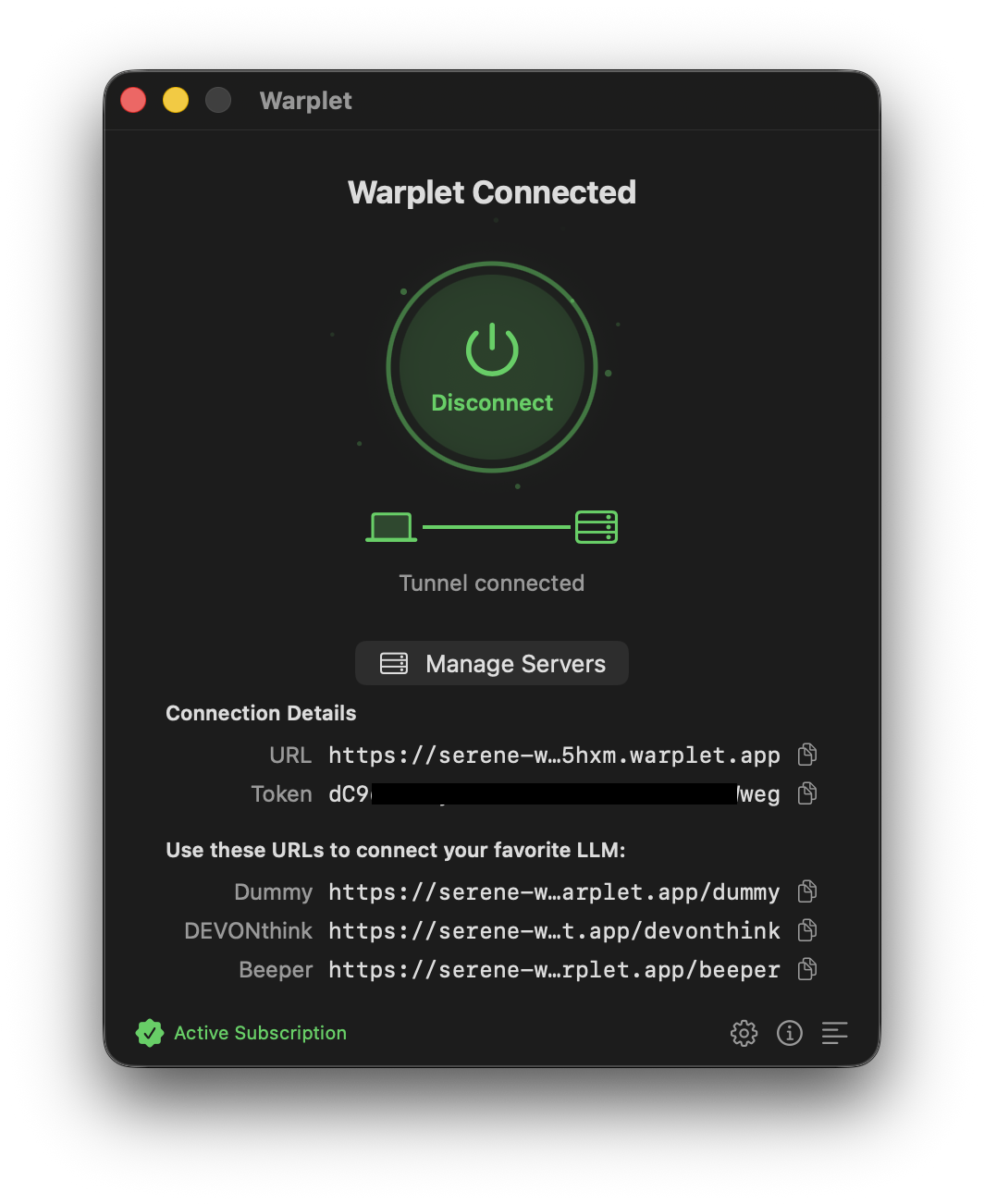
Make sure Warplet is running and connected. The app lists one URL per MCP server under Use these URLs to connect your favorite LLM. Each URL routes to a specific MCP server: the DEVONthink URL routes to the DEVONthink MCP server, the Beeper URL to the Beeper MCP server, and so on. Copy the URL for the server you want to connect.
Add the connector
-
Navigate to your Claude.ai connector settings page: https://claude.ai/settings/connectors.
-
Click the Add Custom Connector button.
-
A form will appear. Fill it out with the following details:
- Name:
Warplet(or the name of the app you're exposing) - Remote URL: your Warplet MCP URL, copied from the app
- Name:
-
Click Add to save the new connector.
-
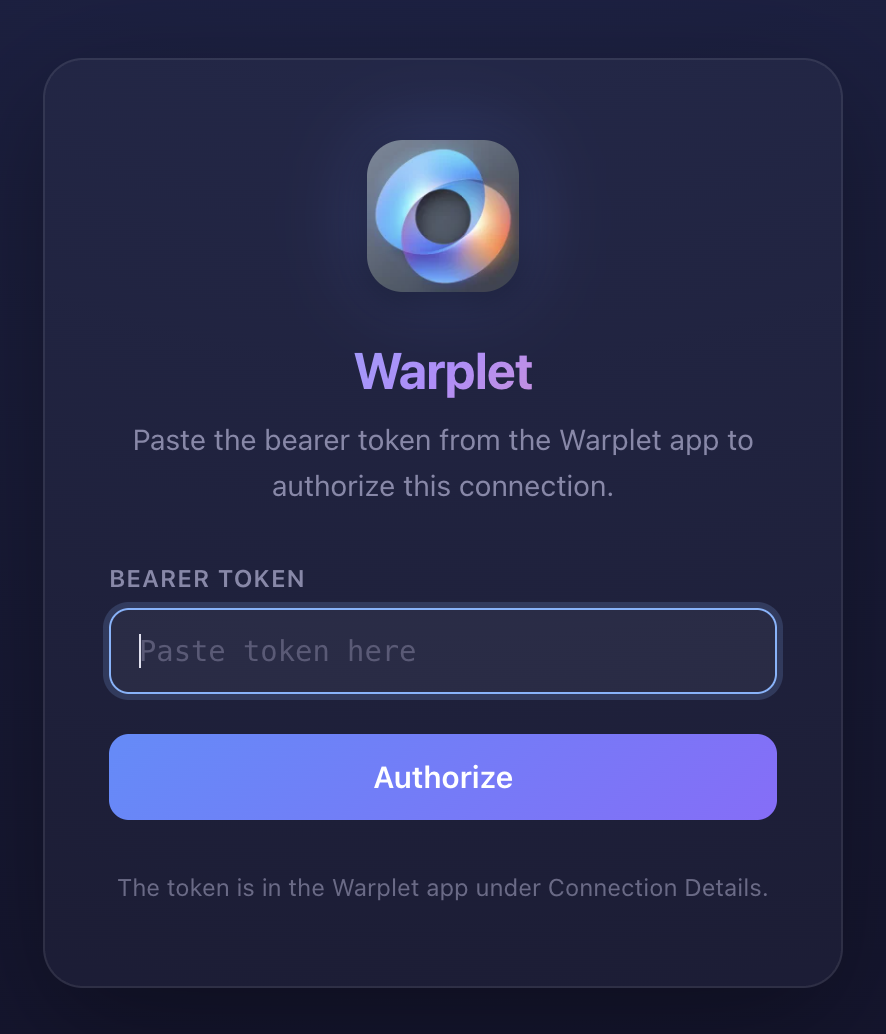
You will be redirected back to the connectors list. Find your connector in the list and click Connect. When the Warplet authorization page appears, paste the bearer token shown in the Warplet app and approve.
Once connected, Claude can use your local tools in any conversation. Toggle the connector on and off per chat from the tools menu.
What the authorization step is doing
Claude does not ask you for a password. It runs an OAuth 2.1 flow against your Warplet tunnel: it fetches the discovery metadata, registers itself as a client, and sends you to a Warplet-hosted authorization page. That page is the one asking for your bearer token. Pasting the token there is what proves to Warplet that this connector is yours, and the token Warplet hands back becomes the credential Claude uses on every later request.
This is why the token only has to be pasted once per connector, and why re-pasting it is the fix for most connection problems.
Troubleshooting
Claude says it cannot connect, or the connector shows an error immediately. Warplet has to be running with a live tunnel for the URL to resolve. Open the app and check that it shows as connected before retrying. A Mac that went to sleep will reconnect its tunnel on wake, but that takes a few seconds.
You get a 401 or the connector drops back to disconnected. A 401 from Warplet means the bearer token presented did not match. The most common cause is a token that was regenerated in the Warplet app after the connector was authorized. Disconnect the connector, click Connect again, and paste the current token from the app.
Claude does not use your tools even though the connector is connected. Check the tools menu in that specific conversation. Connectors are per-chat, and a new chat does not inherit the toggles from an old one.
Claude is calling tools that no longer exist, or missing new ones. Claude caches the tool list it fetched when the connector was connected. If you changed which MCP servers Warplet exposes, or the underlying app gained tools, disconnect and reconnect the connector to force a fresh fetch.
The local app itself is not running. Warplet proxies to localhost; it cannot start the app for you. If DEVONthink, Obsidian, or whichever server the URL points at is closed, Warplet will reach nothing and Claude sees an error.
Now connect an actual app
The connector above gives Claude a path to your Mac. What it can do once it is there depends on which local MCP server that URL points at:
- Use DEVONthink with any AI client
- Use Obsidian with any AI client
- Use NotePlan with any AI client
- Use Beeper with any AI client
- Use Google Chrome with any AI client
- Use Home Assistant with any AI client
You can add as many connectors as you have servers. Each Warplet URL is added separately.