
Warplet is a macOS app that connects hosted AI clients like ChatGPT, Claude, Perplexity, and Grok to MCP servers running locally on your Mac. No port forwarding or cloud hosting is required. It opens a secure tunnel and gives you one URL per local MCP server to paste into any AI client.
DEVONthink includes native, built-in MCP server support. With its MCP server enabled, you can search databases, retrieve document content, query metadata, and organize files directly from your favorite LLM. Warplet exposes this local MCP server to hosted AI clients through a secure tunnel. This guide walks through enabling MCP in DEVONthink, copying your local endpoint credentials, and connecting it in Warplet.
1. Enable the MCP server in DEVONthink
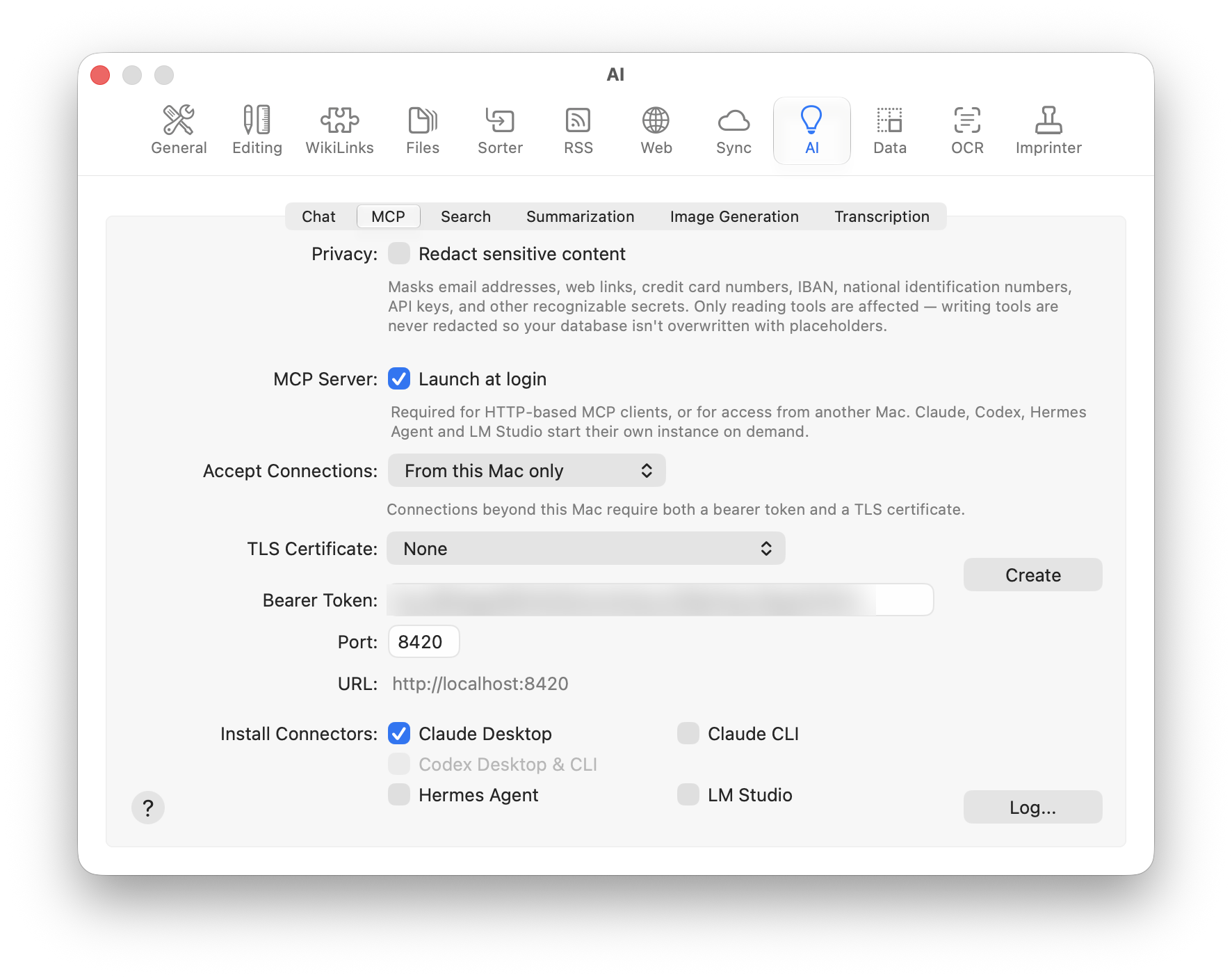
In DEVONthink, open Settings → AI (or press ⌘, and click AI in the toolbar), then select the MCP tab.
You will see DEVONthink's built-in MCP server configuration:
- Port: defaults to
8420. - URL: shows
http://localhost:8420. - Accept Connections: keep this set to From this Mac only. Because Warplet runs locally on your Mac, it communicates with DEVONthink over localhost. You do not need to open incoming network ports or configure custom TLS certificates.
- Bearer Token: DEVONthink generates a secure bearer token (prefixed with
de_). Click Create if you need to generate a new one. Copy this token for the next step. - Privacy (optional): check Redact sensitive content if you want DEVONthink to automatically mask credit card numbers, email addresses, phone numbers, IBANs, and API keys when AI clients read documents from your databases.
2. Add DEVONthink as a server in Warplet
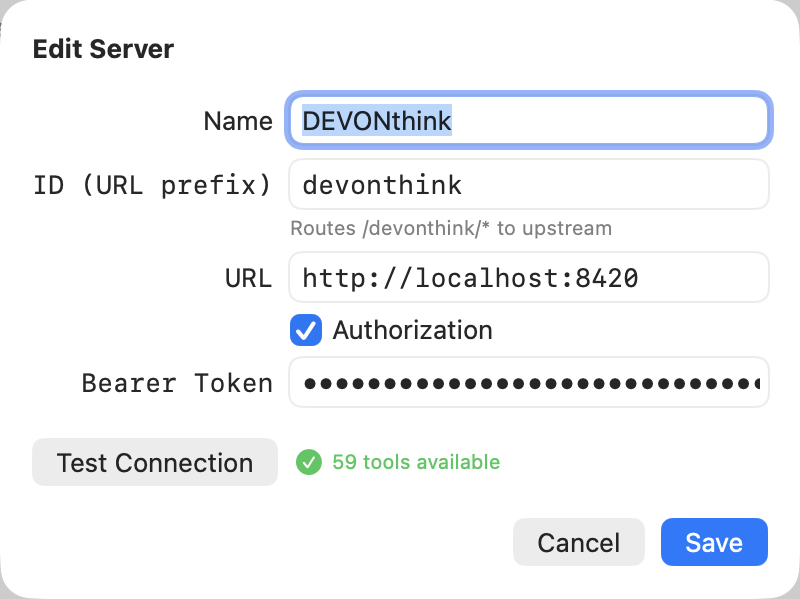
Open Warplet and click Manage Servers, then the + button (or click Edit if DEVONthink is already listed). Fill in:
- Name:
DEVONthink - ID (URL prefix):
devonthink - URL:
http://localhost:8420 - Authorization: check this box and paste the Bearer Token you copied from DEVONthink's settings into Bearer Token
Click Test Connection to confirm Warplet can reach DEVONthink. Warplet will verify the connection and show that 59 tools are available. Then click Add (or Save).
3. Copy your DEVONthink URL and connect an AI client
Back in the main Warplet window, your DEVONthink entry now appears under Use these URLs to connect your favorite LLM. Copy that URL.
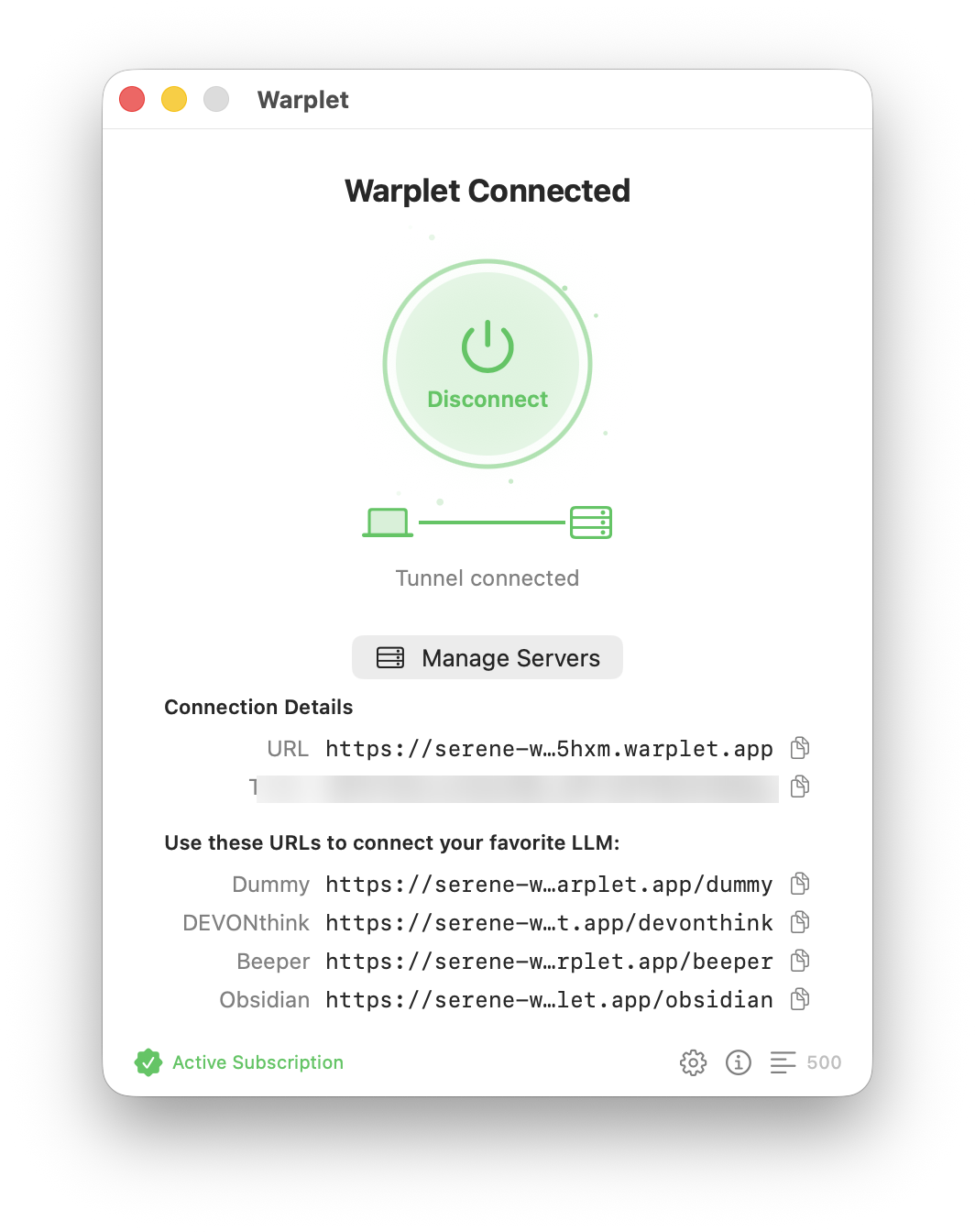
Add it as a custom connector in your AI client of choice, using the same steps as any other Warplet server:
- Connect Warplet to ChatGPT
- Connect Warplet to Claude
- Connect Warplet to Perplexity
- Connect Warplet to Grok
- Connect Warplet to Grok Bot
- Connect Warplet to Gemini
When the client asks you to authorize, paste the Warplet bearer token. Do not use DEVONthink's internal token here; that token stays inside Warplet's server configuration from step 2.
Things to know
- Native MCP support with no plugins. Unlike apps that rely on third-party plugins, DEVONthink provides first-party MCP support directly inside the application.
- Two separate secrets are involved. DEVONthink's bearer token authenticates Warplet's local connection to DEVONthink. The Warplet bearer token authenticates the AI client's remote request to Warplet. Keeping them separate ensures only authorized AI clients can reach your tunnel.
- DEVONthink needs to be running. DEVONthink must be open with its MCP server active for Warplet to proxy requests to your databases. You can also check Launch at login in DEVONthink's MCP settings to ensure it starts automatically.
- Built-in sensitive content redaction. When Redact sensitive content is enabled in DEVONthink, reading tools mask recognized secrets such as API keys, credit cards, and emails before sending text to the AI model. Writing tools are never altered, protecting your databases from placeholder corruption.
- Comprehensive toolset. DEVONthink exposes dozens of MCP tools covering search, record retrieval, metadata inspection, tagging, database navigation, and document organization.